
In today’s evolving e-commerce landscape, selling physical products is only one aspect of building a successful online business. For many service-based businesses, such as spas, fitness studios, consultants, hotels, tour operators, and rental agencies, offering the ability to schedule appointments, classes, or rentals online is crucial. Managing bookings through phone calls, emails, or spreadsheets can be cumbersome, error-prone, and inefficient. Missed appointments, double bookings, or miscommunications can negatively impact customer experience and reduce revenue. This is where the WooCommerce Bookable Product comes into play.
With this extension, WordPress users can transform their WooCommerce store into a fully automated booking system. Businesses can set available dates and times, manage staff or resources, accept payments online, and prevent double bookings seamlessly. A Product Configurator for WooCommerce allows customers to personalize items before purchasing whether it’s choosing colors, adding custom text, selecting materials, or building a product step-by-step. This interactive setup helps shoppers visualize the final result in real time, making the buying process more confident and engaging.
For store owners, a configurator streamlines complex product options, reduces manual customization requests, and ensures accurate orders every time. By offering a guided customization flow, businesses can increase conversions, lower return rates, and deliver a more premium shopping experience. This tool is especially useful for stores selling furniture, apparel, accessories, electronics, or any product with multiple variations that customers want to see before buying.
What is a WooCommerce Bookable Product?

A WooCommerce Bookable Product is a specialized product type that allows customers to schedule appointments, events, or rentals directly from a website. Unlike traditional physical products purchased and shipped, bookable products focus on reservations tied to dates, times, or durations. This functionality is made possible by the WooCommerce Bookings plugin, which seamlessly integrates with WooCommerce stores, offering a powerful solution for businesses that rely on time-based services.
Key Features of WooCommerce Bookable Products:
- Flexible Scheduling: Set availability by date, time, or duration to match your business hours.
- Resource Management: Assign staff, rooms, or equipment to bookings to prevent conflicts.
- Automated Slot Blocking: Prevent double bookings automatically.
- Payment Integration: Accept online payments using WooCommerce Payments for a smooth transaction process.
- Group Booking Options: Allow multiple people to book a single slot, ideal for classes or group services.
By leveraging these features, businesses can provide a professional booking experience that saves time, reduces errors, and ensures optimal resource usage.
Benefits of Using WooCommerce Bookable Products
Adding bookable products to your website provides significant advantages, both for businesses and customers:
- Streamlined Scheduling: Customers can check availability and make reservations online without the need for back-and-forth communication, phone calls, or emails.
- Efficient Resource Management: Prevent overbooking by properly assigning staff, rooms, or equipment to specific appointments.
- Revenue Boost: Encourage prepayments, deposits, and timely bookings, reducing no-shows and improving cash flow.
- Customer Convenience: Offer a modern, professional booking interface accessible from any device.
- Improved Business Operations: Automate notifications, confirmations, and booking management to save time and reduce errors.
- Enhanced Customer Experience: A seamless online booking process improves customer satisfaction and fosters trust in your business.
The WooCommerce Bookable Product not only simplifies operations but also allows businesses to scale services more efficiently and adapt to changing customer needs.
How to Create a WooCommerce Bookable Product
Creating a bookable product in WooCommerce is straightforward. Below is a detailed step-by-step guide:
Step 1: Install the WooCommerce Bookings Plugin

Before you can create a bookable product, ensure WooCommerce is installed and active on your WordPress website. WooCommerce alone only supports standard products, so the WooCommerce Bookings plugin is necessary to add booking functionality.
Purchase the plugin from the official WooCommerce marketplace, download the plugin file, and navigate to your WordPress dashboard. Go to Plugins > Add New > Upload Plugin, select the downloaded file, click Install Now, and then Activate. Once active, the plugin integrates seamlessly with your existing store, enabling you to create appointments, rentals, or events.
The installation of the WooCommerce Bookings plugin is critical. It lays the foundation for offering professional, automated bookings online. With the plugin active, you can configure availability, manage resources, set pricing rules, and define booking parameters, all in one place. This ensures that your customers enjoy a smooth and reliable booking process while your business operates efficiently.
Step 2: Add a New Bookable Product

After installing WooCommerce Bookings, navigate to Products > Add New in your WordPress dashboard. Enter a descriptive product name that clearly represents the service, rental, or class you are offering. Include a detailed product description explaining what customers can expect, the duration of the service, and any special instructions.
In the Product Data dropdown, select Bookable Product. This transforms your standard product into a bookable one, unlocking options such as scheduling, pricing per slot, buffer times, and resource allocation. You can also categorize the product, add tags, and include featured images to make it more discoverable and visually appealing.
A well-crafted product page builds customer confidence, reduces confusion, and increases the likelihood that visitors will complete bookings. Customers are more likely to book when they have all the necessary information upfront.
Step 3: Configure Booking Options
Configuring the booking options is essential to provide a seamless scheduling experience. Start by defining the duration of each booking, minutes, hours, or full days. Next, set availability, including specific dates, weekdays, or time slots. Add buffer times between bookings to allow preparation or cleanup, ensuring no overlaps.
One Page Checkout for WooCommerce simplifies the entire purchasing process by displaying the product selection, cart details, and checkout form on a single page. Customers can review items, enter their information, and complete payment without navigating through multiple steps, reducing friction and improving the overall shopping experience. For store owners, this setup often leads to higher conversions, fewer cart abandonments, and a faster path to purchase especially useful for digital products, subscriptions, or stores with fast-moving customers. By keeping everything in one place, businesses can deliver a smoother, more streamlined checkout flow that encourages quick decision-making and boosts sales.
Proper configuration ensures your WooCommerce Bookable Product runs efficiently, avoids scheduling conflicts, and delivers a professional experience. Customers appreciate clarity and structure, which enhances their trust and satisfaction.
Step 4: Manage Resources and Persons
For services that require multiple staff members, rooms, or equipment, WooCommerce Bookings allows effective resource management. Navigate to the Resources tab in the bookable product settings to add resources, define their availability, capacity, and cost, and assign them to specific bookings.
If your service supports group bookings, use the Persons tab to define limits on the number of people per booking and set costs per person. This is particularly useful for gyms, workshops, and spas, where multiple bookings may occur simultaneously.
Efficient resource and person management prevents overbooking, optimizes scheduling, and ensures a smooth service delivery. Customers benefit from transparent availability, enabling them to select preferred slots confidently.
Step 5: Publish Your Bookable Product

After configuring all settings, review everything carefully, including availability, duration, pricing, buffer times, resources, and person limits. Click Publish to make the product live. Customers can now view your service, select their preferred time slot, and complete bookings online using WooCommerce Payments.
The plugin automatically handles confirmations, notifications, and prevents double bookings, significantly reducing manual administrative work. Regular monitoring ensures the booking system operates smoothly and allows adjustments when necessary. Publishing a WooCommerce Bookable Product enables businesses to provide an automated, reliable, and modern booking experience.
Step 6: Optimize Your Bookable Product
To maximize bookings and enhance user experience, optimize your product page:
Clear Descriptions: Explain the service, its duration, and what customers can expect.
- Flexible Scheduling: Offer multiple time slots, recurring schedules, or alternative dates.
- Reminders: Enable email notifications and reminders to minimize no-shows.
- Mobile-Friendly Booking: Ensure the interface works seamlessly on smartphones and tablets.
- Special Offers: Include discounts for early bookings or group reservations to increase engagement.
Optimization not only improves conversion rates but also enhances customer satisfaction, making it more likely they will return for future bookings.
Advanced Tips for WooCommerce Bookable Products
- Integrate Calendar Tools: Sync bookings with Google Calendar or Outlook to streamline staff management.
- Use Conditional Rules: Show different availability or pricing based on customer type or booking size.
- Leverage Analytics: Track booking patterns, peak times, and resource usage to improve efficiency.
- Offer Add-Ons: Include optional services or products during booking, such as equipment rental or refreshments.
By implementing these advanced features, businesses can further enhance the booking experience, increase efficiency, and drive higher revenue.
Conclusion
A WooCommerce Bookable Product is far more than a simple tool to sell services online. It is a comprehensive solution for businesses that depend on appointments, rentals, or events. By integrating WooCommerce Bookings into your WordPress store, you offer customers a seamless, professional, and reliable booking experience. From flexible availability and resource management to accepting payments and preventing double bookings, the plugin handles every aspect of scheduling automatically.
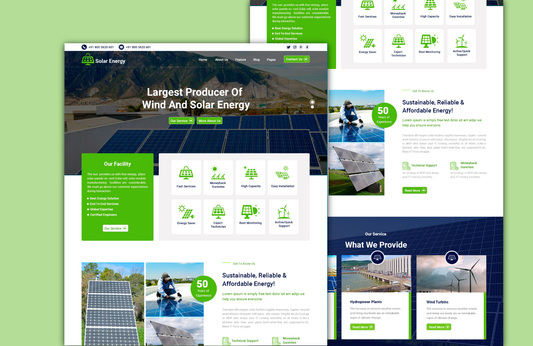
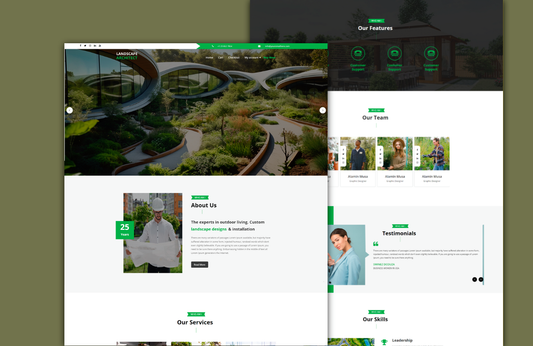
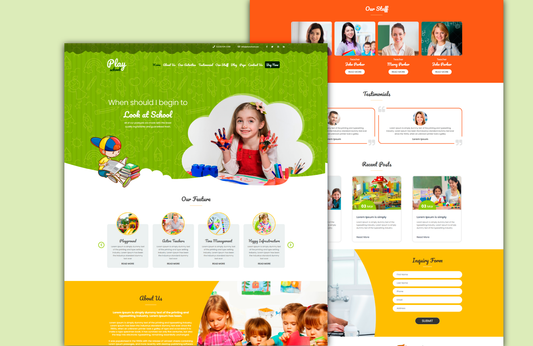
Choosing a WordPress Theme Bundle is one of the most cost-effective ways to build multiple websites with consistent quality and design flexibility. Instead of purchasing individual themes, a bundle gives you access to a complete collection—covering business, eCommerce, blogging, portfolios, education, and niche-specific layouts. This makes it especially valuable for agencies, freelancers, developers, and business owners managing multiple online projects. With all themes designed to be responsive, customizable, and compatible with popular page builders, a bundle ensures you always have the right design ready for any client or personal website. It streamlines your workflow, reduces development time, and provides long-term value with regular updates and support. For anyone looking to scale their digital presence efficiently, a WordPress Theme Bundle offers the perfect mix of variety, performance, and professional polish.
FAQs
1. Do I need any specific plugins to create a bookable product in WooCommerce?
Yes, WooCommerce doesn’t include booking features by default. To add bookable products, you’ll need a dedicated booking plugin such as WooCommerce Bookings or another reliable third-party tool that supports calendars, time slots, and automated scheduling.
2. Can I allow customers to choose custom time slots for their bookings?
Most booking plugins let you set your availability in flexible ways. You can create fixed time slots, allow users to pick their own time ranges, or even set different schedules for weekdays, weekends, and holidays.
3. Is it possible to offer both one-time and recurring bookings?
Yes, many booking solutions support recurring appointments. You can set repeat intervals daily, weekly, or monthly depending on your service type. It's helpful for gyms, classes, membership-based services, or rental products.
4. How can I prevent double bookings on the same date or time?
Double bookings are avoided automatically if you configure your “max bookings per slot” correctly. Setting it to 1 ensures exclusivity, while higher values allow group bookings.
5. Can I charge different prices based on time, season, or day of the week?
Dynamic pricing is supported by most advanced booking plugins. You can set peak and off-peak rates, weekend-specific prices, or seasonal pricing to match demand.